


Video Downloader
4.752.94K Reviews
App Specs
- Version
- 2.6.7
- Updated On
- License
- Free
- Downloads
- 100,000,000+
- Developer
- InShot Inc.
- Categories
- Video Players & Editors
- Platform
- Android, iOS
Screenshots
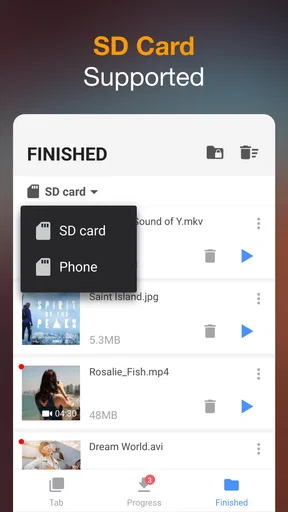
 Analysis by AppCompare
I judge a video-saving app by whether it makes a small, practical job easier without making me fight the interface. Video Downloader is built around that straightforward idea: find a video, save it for later, and keep it available when streaming is inconvenient. I can see the appeal for commutes, trips, or patchy connections, though it is not a universal solution for every site or every kind of viewer.
What the simple workflow gets right
The app’s central task is easy to understand. Rather than treating video saving as one feature buried in a large editing suite, it focuses on finding and downloading media. That makes it most useful when I already know what I want to keep: a tutorial to revisit, a clip to show someone, or a piece of material I have permission to save for offline use.
There are two sensible ways to start. If I have a video address from somewhere else, pasting it is the direct route. If I am already looking for something, browsing from inside the app can make the process feel more connected. I would choose the first method when I trust the source and want fewer steps; the in-app route is more convenient when I am discovering or checking material before deciding whether I need a local copy.
That distinction matters more than it sounds. Saving a link is not the same as deciding to keep a file on a phone. I find it useful to ask whether I will genuinely watch the video again, whether I have enough room for it, and whether the source allows downloading. Those quick checks prevent a downloads folder from turning into a pile of clips I never open.
Where it fits among video apps
In the broad world of video players and editors, this is a utility rather than a creative tool. It is not trying to replace an editor for trimming footage or a player built around a carefully organized media library. Its appeal is the step before offline playback: getting a suitable video onto a device through a simple workflow.
Compared with relying only on streaming apps, a downloader can be more useful when connectivity is unreliable or mobile data is something I want to conserve. The trade-off is that the usual streaming service may offer a more predictable offline mode for its own catalog, with viewing managed inside that service. A separate downloader is relevant when the material and source are compatible, but it should not be treated as a way around platform restrictions or access controls.
Compared with a general-purpose file manager, the advantage is focus: a video-oriented process can be easier to follow than sorting through unrelated files and folders. A file manager may still be better if I mainly move, rename, or organize media I already have. And if I want to edit a clip, add captions, or assemble a sequence, a dedicated editor is the more suitable choice. I would not install this expecting those jobs to be part of its core purpose.
Worth Reading Before You Choose

Flipboard Shows What News Apps Must Do Beyond the Feed

Switching to Android Auto Means Rethinking Your Driving Routine

Google Calendar Makes a Crowded Week Easier to Manage

Ludo King Makes the Most of the Minutes Between Plans

Baby Panda World Brings Quick Play to Modern Phones, but Its Game Library Feels Busy

ESPN’s Live Game View Makes Following Close Games Easier
Getting Started with Video Downloader
First off, let's chat about the setup. Downloading and installing the Video Downloader app is a breeze. It’s available on both Android and iOS, so no matter what kind of phone you have, you’re covered. Once installed, the app greets you with a straightforward, user-friendly interface. I appreciate apps that don’t overwhelm you with options right from the start, and this one keeps things simple.
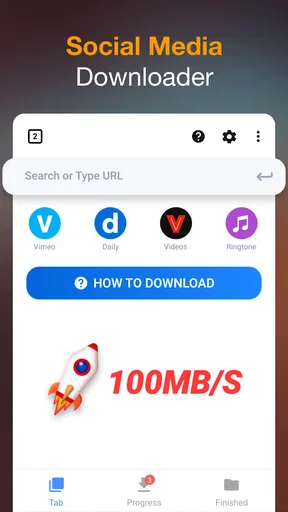
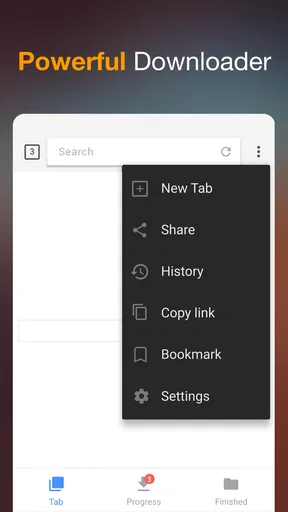
The home screen is clean, with a search bar prominently displayed. You can either paste a URL directly or browse through your favorite sites within the app. This dual functionality is pretty nifty, especially if you’re someone who enjoys exploring content from different platforms.
Features That Stand Out
Now, onto the fun part. What can this app actually do? Well, a lot, as it turns out. Here are some of the features that really grabbed my attention:
- Fast Downloads: The app supports high-speed downloads. Whether it’s a short clip or a full-length movie, videos download quickly and efficiently.
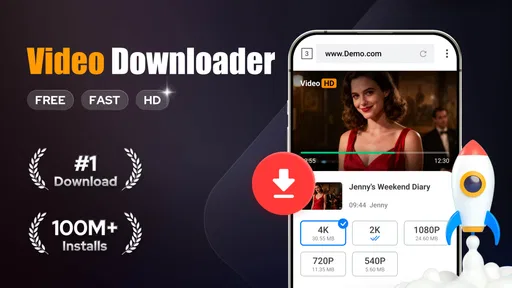
- Multiple Formats: You’re not stuck with just one video format. The app allows you to choose from various formats and resolutions, which is super handy if you’re saving space on your device.
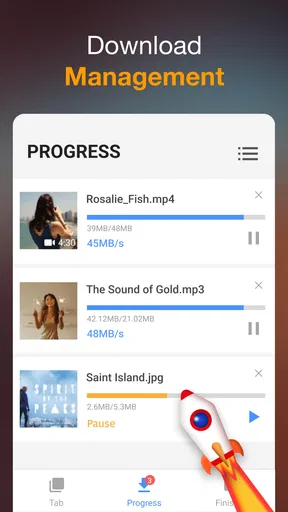
- Background Downloading: You can minimize the app and go about your day while it does its thing in the background. No need to babysit the download process.
- Built-in Browser: The integrated browser makes it easy to navigate directly to the video source. You can bookmark your favorite sites for quick access too.
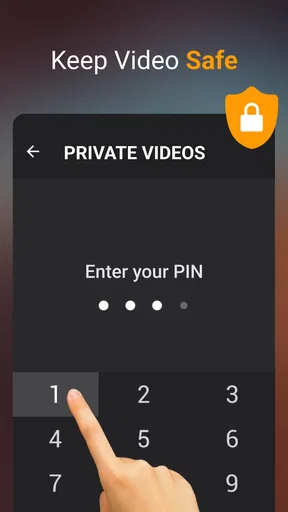
- Privacy Features: For those concerned about privacy, the app offers password protection and private folders. You can keep your downloads away from prying eyes.
Making offline copies useful, not clutter
A good way to get more value from a downloader is to be selective about what you save. For a commute, I would queue up a few shorter videos rather than several large files, then check that they are actually available offline before leaving. For a trip, I would download material while connected to dependable Wi-Fi and open each file once before setting off. That quick test can catch a failed or incomplete save before I am relying on it away from home.
Resolution is another practical choice, not just a quality setting. If a video is mainly for listening to a lecture or following a cooking demonstration on a small screen, the highest available resolution may not add much. A lower option can be a better balance between readability and storage. For footage where fine detail matters, such as a close-up repair walkthrough, I would prioritize clarity instead. The useful habit is to match the setting to how I will watch rather than automatically choosing the largest file.
Bookmarks can also help separate sources I trust and revisit from one-off browsing. I would keep them focused: a handful of regular, legitimate sources is easier to manage than bookmarking every site I encounter. If a page changes or a download option no longer appears, trying the direct address may be a reasonable next step, but repeated failures are a sign that the source may not support this workflow. I would move on rather than spend time trying to force it.
Using Video Downloader Day-to-Day
In terms of everyday use, the app performs exceptionally well. I’ve been using it to download everything from educational content to funny clips for offline viewing during my commute. The process is as simple as copying a video link and hitting the download button. It’s all very intuitive and requires minimal effort on your part.
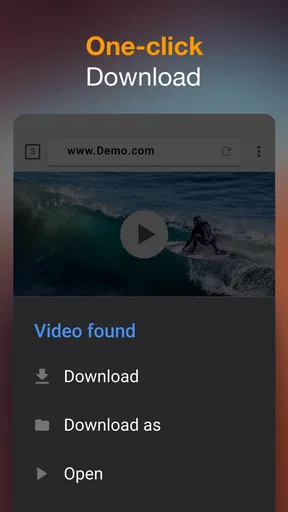
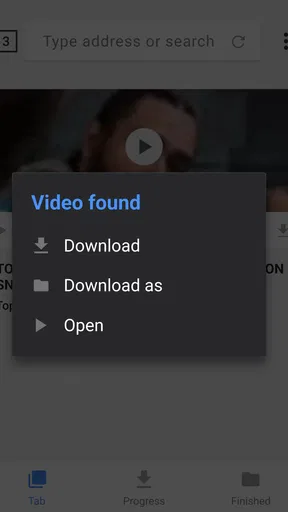
One interesting feature is the app’s ability to detect downloadable content automatically when you’re browsing. This is a nice touch, as it saves you the hassle of manually copying URLs. It’s like the app is sitting there, ready to pounce on any video you might want to save.
A realistic routine and a few checks
Imagine I find a useful how-to video during a lunch break and know I will be somewhere with a weak signal later. I can open the source in the app’s browser, check whether the video can be downloaded, choose a sensible quality, and let the download finish before leaving. Once it is saved, I would play it briefly while still online. That confirms I picked the right item and that the file opens, rather than discovering a problem on the train.
For a batch of material, I would download one item first and see how it looks and how much space it uses before saving several more. That small trial is more reliable than assuming every video from a site behaves identically. If the first one is not available in a useful format or the page does not expose a compatible download, I would stop and use the source’s own offline option if one exists.
One question people often have is whether a downloaded video can be kept permanently. I would treat it as a local copy for personal offline viewing, not as a guarantee of permanent access or permission to redistribute it. Rights and platform terms still matter, and some sources restrict saving. The sensible rule is to download only content you are allowed to keep and use.
Another practical question is whether it is worth using on a phone with limited storage. It can be, if I save selectively, choose a suitable resolution, and remove files once I have finished with them. It is less appealing if I want to build a huge archive on the device. In that case, a larger storage option or a different way of organizing media may be more useful than collecting downloads without a plan.
What Could Be Better?
While I’ve had a mostly positive experience, there are a couple of things that could use a little polish. For instance, the app occasionally struggles with certain websites that use more complex streaming protocols. It’s not a deal-breaker, but worth noting if you frequently visit such sites.
Additionally, the free version of the app comes with ads. It’s not overwhelming, but if you’re someone who likes a clean, uninterrupted experience, you might consider upgrading to the premium version.
Who should use it, and who should look elsewhere
I would recommend it most to someone who often needs a few videos available offline and values a direct, approachable process over a large set of editing tools. Students revisiting permitted learning material, travelers preparing entertainment before a journey, and people who want to keep a useful clip for a weak-connection moment are the clearest fits. The app’s focused approach makes more sense when downloading is an occasional, intentional task rather than a reason to reorganize an entire media collection.
I would skip it if most of my viewing happens inside services that already offer reliable offline access, or if the sites I use commonly block downloads. I would also choose a dedicated editor if my goal is to cut footage, add effects, or publish polished videos. A downloader has a narrower job, and that is a strength only when that job matches what I need.
Video Downloader is a free app from InShot Inc. in the video tools space, and its audience size suggests it has become a familiar option for many people: it has a 4.7 average from around 2.6 million ratings and over 100 million installs. It is rated Teen, and the current version is 2.5.5. The app is free to start, with in-app purchases listed from $2.99 to $6.99 per item. I would weigh those optional costs against how often the ads or other friction actually bother me rather than paying before I know the workflow suits me.
Final Thoughts
Overall, the Video Downloader app is a solid choice for anyone who loves saving videos for offline use. Its ease of use, combined with powerful features, makes it a standout in a crowded field. Sure, there are a few quirks, but they’re minor compared to the convenience this app offers.
If you’re tired of buffering videos or just want to binge-watch without worrying about data usage, give this app a shot. It’s definitely earned a permanent spot on my home screen, and I think it might do the same for you.
My recommendation in brief
My verdict is positive, with a clear condition: it is best when I have a legitimate source, a specific video to keep, and a reason to watch offline. I would test the source with one download, choose quality based on the screen and available space, and confirm playback before depending on it. Those small steps make the app more useful and help avoid wasted storage or last-minute disappointment.
If that describes your routine, this is an approachable tool worth trying. If you need guaranteed offline viewing from a particular streaming service, use that service’s own feature; if you want to edit or manage a broad collection, choose an app built for those tasks. For the narrower job of saving compatible videos for later, Video Downloader offers a convenient starting point without pretending every source will work the same way.
Pros
- Supports multiple platforms efficiently.
- Fast download speeds with minimal lag.
- User-friendly interface for easy navigation.
- Allows batch downloading of videos.
- Supports high-definition video downloads.
Cons
- Contains intrusive ads that interrupt usage.
- Limited format options for video conversion.
- Requires in-app purchases for advanced features.
- Occasional bugs during large file downloads.
- No built-in video player for previewing content.
FAQs for Video Downloader
What are the main features of the Video Downloader app?
The Video Downloader app offers a range of features including the ability to download videos from various platforms in multiple formats, a built-in browser for easy navigation, and a video player for offline viewing. It also supports batch downloading and offers options for video quality settings.
Is the Video Downloader app safe to use?
Yes, the Video Downloader app is designed with user security in mind. It does not store any personal data and uses encryption to protect your downloads. However, users should always ensure they are downloading content legally and from reputable sources to avoid malware.
Does the Video Downloader app support all video platforms?
The app supports a wide range of popular video platforms, but not all. Some platforms have restrictions that prevent downloading, and users should check the app’s compatibility list to ensure their desired platforms are supported. Regular updates may expand this compatibility.
Can I download videos in different quality settings?
Yes, the Video Downloader app allows users to choose from various quality settings, ranging from standard definition to high definition, depending on the availability from the source. This flexibility is helpful for managing storage space on your device or ensuring faster downloads.
Are there any in-app purchases or subscription fees?
The app offers a free version with basic features. However, for an ad-free experience and additional functionalities such as faster download speeds or higher quality options, users can opt for a subscription or one-time purchase. Details of these costs can be found within the app.


